Get started
Add it to Chrome
Open the Chrome Web Store page and press “Add to Chrome”. It needs Chrome 114 or newer. Blocking starts at once, on every site, with nothing to set up.
Pin the shield
Click the puzzle-piece icon at the top right of Chrome, then the pin next to ShieldBlock. Its shield stays in the toolbar, one click away.
Pick your extras
A short “How to use” page opens once, after installing. It has three switches: clean tracking from links (on), answer cookie pop-ups “Reject all” (off) and stop “Show notifications?” requests (off). You can find the page again from the popup at any time.
See what was blocked
Click the shield on any site. The popup shows how many ads and trackers were stopped on that page and how many elements were hidden, with the totals since you installed it.
“Pause here” switches ShieldBlock off for that one site, for an hour or until you resume it. The switch at the top does the same everywhere.
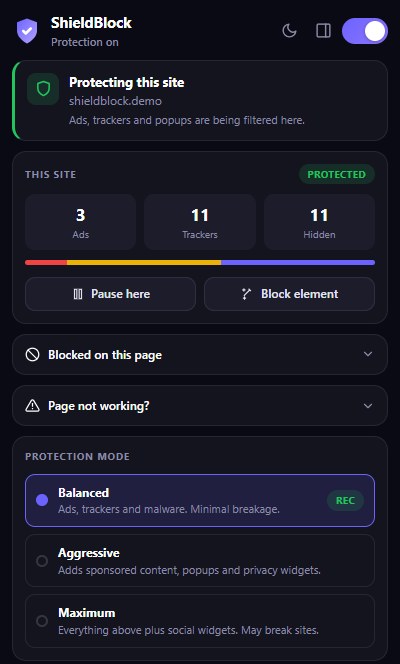
A page not working? Fix it in one click
Press “Page not working?” in the popup. Step one, “Pause here and reload”, brings the page back at once and tells you whether ShieldBlock was the cause.
The panel also says what ShieldBlock is doing on the page right now, and step four writes a report you read before anything is sent.
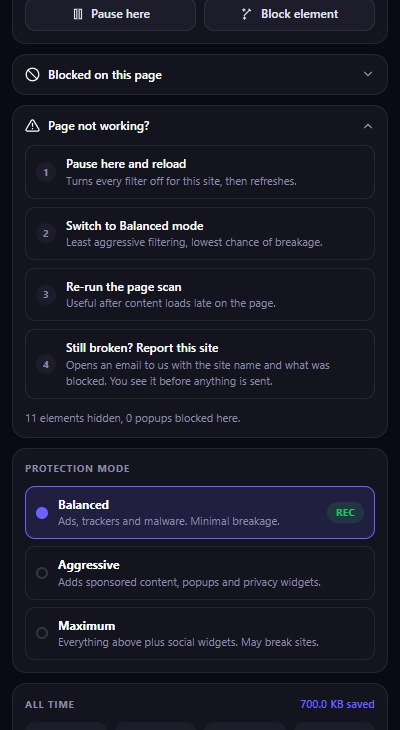
Allow just the one thing a page needs
“Blocked on this page” lists every host ShieldBlock stopped on the page. “Allow here” lets one of them load on that site only, while it stays blocked everywhere else. “Undo” blocks it again.
That keeps the ads blocked on a site where a single widget needs something the filters stopped.
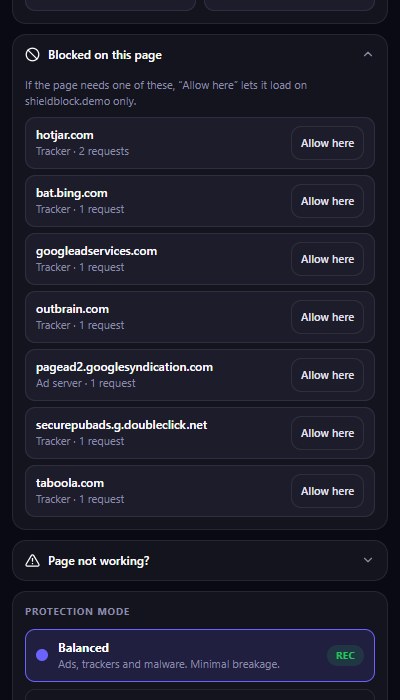
Cookie pop-ups, notification requests and tracking links
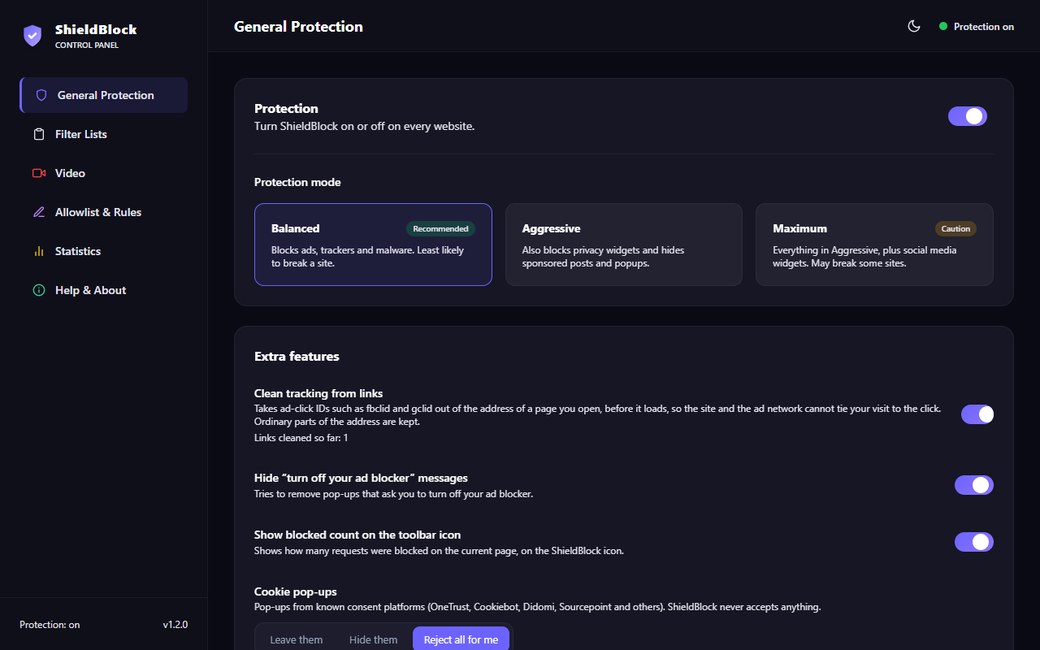
Settings → General Protection → Extra features. “Reject all for me” presses the site’s own reject button on known consent pop-ups and never accepts anything. “Stop Show notifications? requests” keeps sites you never answered from asking.
“Clean tracking from links” takes ad-click IDs such as fbclid and gclid out of addresses before the page loads. If a site needs its pop-up or its notifications, the popup offers “Leave alone here” and “Allow here” for that site.
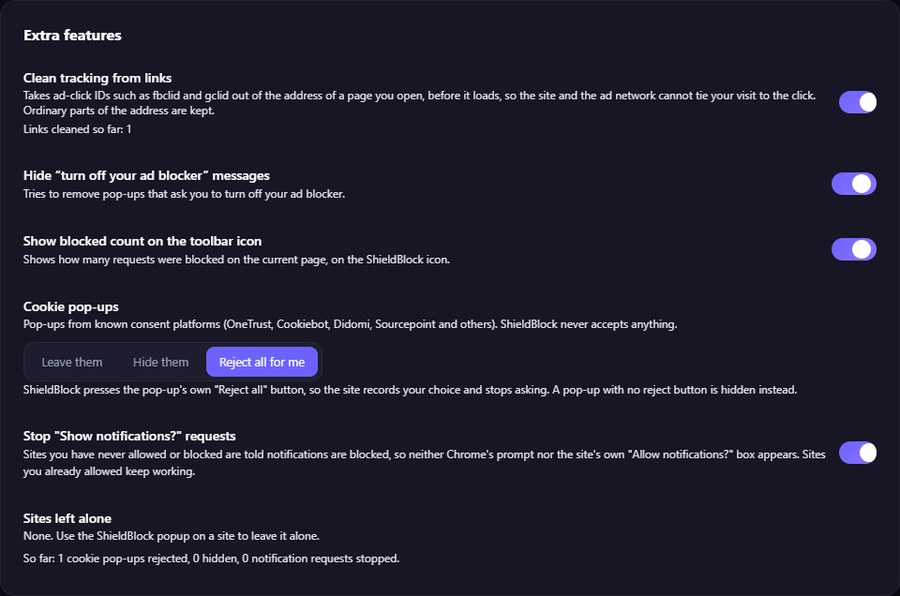
Hide anything the filters missed
Press “Block element” in the popup, or Alt+Shift+E, and click what you want gone. You can also right-click it and choose “ShieldBlock: Block this element”.
Everything you hid is listed under Settings → Allowlist & Rules, where removing an entry brings the element back without a reload. “My filters” takes your own rules, one per line.
Everything included, free
No premium tier, no “acceptable ads” list, no upgrade tabs. Every feature below is in the extension you install.
Ads blocked everywhere
Banner ads, in-article slots, sticky bars and sidebar units, using ShieldBlock’s own lists and the community EasyList.
Trackers stopped
About 52,000 rules from EasyPrivacy cut off analytics, pixels and session recorders before they load.
Cookie pop-ups answered
“Reject all” pressed for you on about twenty consent platforms, or the pop-up just hidden. Never accepted.
No notification nags
“Show notifications?” requests stopped on sites you have never answered. Sites you allowed keep working.
Clean links
Ad-click IDs such as fbclid, gclid and msclkid taken out of the addresses you open.
Video playback protection
Video ads handled, and a stuck player repaired with your speed and volume put back.
Popup and popunder guard
Windows opened without a click to known popunder networks are closed. Ones you click still open.
One-click page fix
Pause on a site and reload, or allow just one blocked host there, from the popup.
Element picker and your own filters
Hide anything with a click, or write block, allow and hiding rules of your own.
Three modes
Balanced breaks the fewest pages. Aggressive and Maximum also take out sponsored content and widgets.
Backup, shortcuts, side panel
Settings saved to a file, two keyboard shortcuts, a side panel, light and dark themes, English, Hindi and Tamil.
Private by design
No account, no analytics, no server. The lists ship inside the extension and nothing is sent anywhere.
Keyboard shortcuts
| Shortcut | What it does |
|---|---|
Alt+Shift+P | Pause or resume ShieldBlock on the current site (reloads the tab) |
Alt+Shift+E | Pick an element on the page to hide |
Change them at chrome://extensions/shortcuts, where opening the popup can be given a shortcut too.
Still stuck?
The support page answers the common questions, and the report form writes an email about a broken page that you read before sending.